Tutorial: Compile Your First Python Executable with Py2Native
In this tutorial, you’ll take plain Python code and turn it into a native executable with a single command: uv run py2native build main.py *.py. You’ll set up a small project, compile it, run the result, and verify that your Python source is no longer shipped as plaintext.
The hard way is writing .pyx files, managing Cython’s build pipeline, and learning C extension details. Py2Native removes all of that. You write normal Python, and Py2Native handles the transpilation, compilation, and linking behind a single CLI.
What You’ll Build
By the end of this tutorial, you will have:
- A native executable compiled from a simple Python entry point.
- A clear picture of what Py2Native does under the hood during a build.
- A set of verification steps to confirm the compiled output runs without the original
.pyfiles. - Basic troubleshooting knowledge for common first-build issues.
You’ll also see where executable mode fits alongside Py2Native’s other output modes. In executable mode, the build produces a standalone native binary. In library mode, Py2Native produces a shared library and can also create a wheel. This tutorial focuses on the executable path.
Prerequisites
Before you start, make sure you have:
- CPython 3.11–3.15, including free-threaded 3.14t and 3.15t.
- A platform C compiler and linker:
- Windows: MSVC
- Linux: GCC
- macOS: Clang
- Internet access, because Py2Native downloads Python distributions and libraries as needed.
uvinstalled, version 0.11.8 or newer. Py2Native commands always start withuv run py2native.
Supported platforms are Windows 8+, manylinux2014/musl Linux, and macOS, on x86-64 or ARM64 CPUs.
You can check your toolchain with:
uv --version
On Linux or macOS, also verify your C compiler is present:
cc --version
On Windows, make sure MSVC is available in your developer command prompt.
Step-by-Step: Compile Your First Executable
1. Create a uv-managed project
Start with a fresh project directory:
uv init --python 3.12 hello-native
cd hello-native
If py2native is not already declared in your project, add it with uv:
uv add py2native
You now have a clean project where uv run will resolve the Py2Native CLI.
2. Add a simple Python entry point
Create main.py:
import helper


def main():
    print(helper.message())


if __name__ == "__main__":
    main()
Create helper.py:
def message() -> str:
    return "Hello from native code"
This is intentionally small, but the same workflow applies to larger multi-module projects.
3. Run the build
Compile every Python source file in the project:
uv run py2native build main.py *.py
Here, main.py is the entry module, and *.py expands to the source files. Py2Native globs the sources under the current base directory and passes them through its build pipeline.
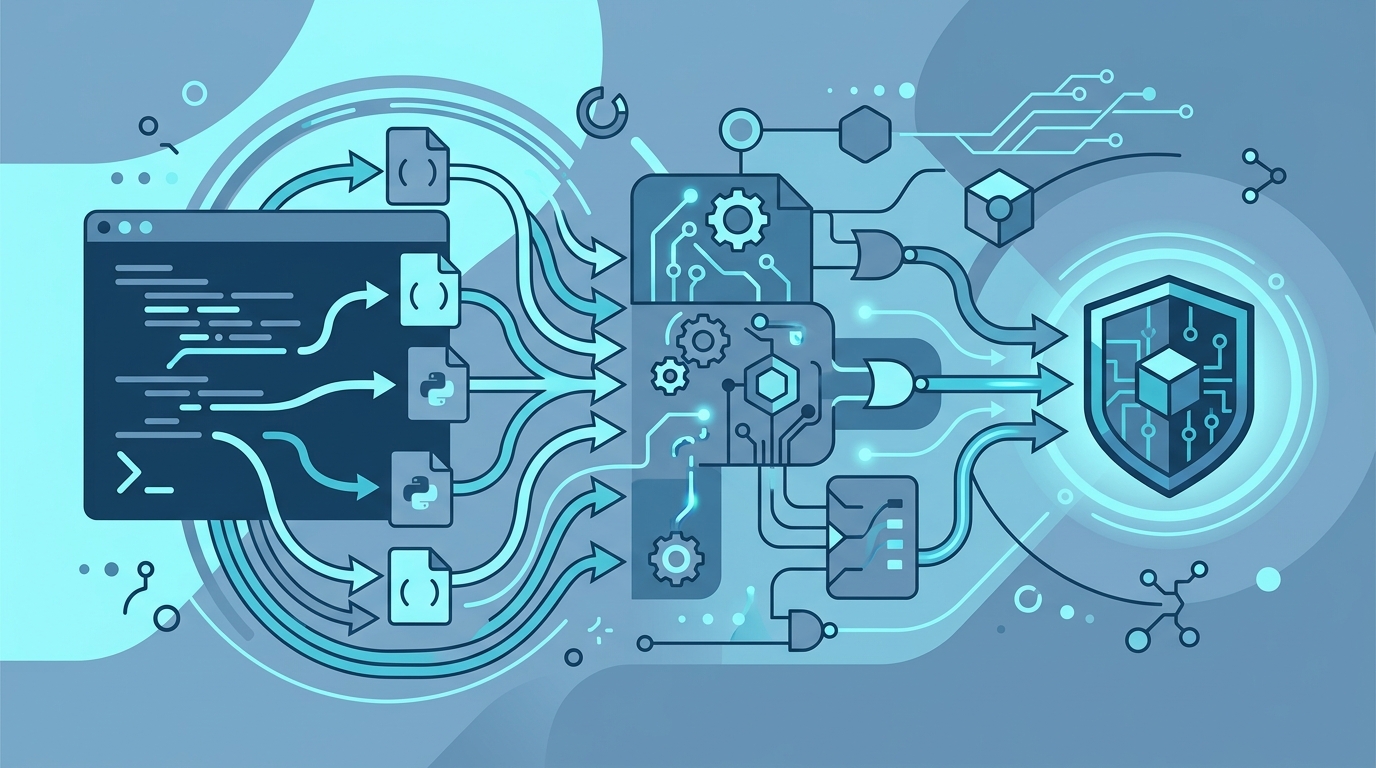
4. What happens under the hood
Py2Native performs these steps without requiring you to write any Cython syntax or manage .pyx files manually:
- Source expansion: the build orchestrator expands glob patterns and collects the Python modules.
- Plugin dispatch: Py2Native runs lifecycle hooks for platform and optional Pro behavior.
- Python-to-C transpilation: Py2Native generates a bootstrap source and invokes Cython to transpile the Python modules to C.
- C compilation: the generated C files are compiled into object files using the platform compiler.
- Linking: the objects are linked into a native executable.
The result is a compiled binary rather than a folder of readable Python source files.
5. Locate the generated executable
After the build finishes, Py2Native prints the output path. In a typical executable build, the output is named after your main module:
- Linux/macOS: something like
build/main - Windows: something like
build\main.exe
Use the exact path printed by your terminal. For the examples below, we’ll assume the output is build/main.
6. Run the executable
Run the native binary from your terminal:
./build/main
Expected output:
Hello from native code
If you’re on Windows, run:
.\build\main.exe
The same Python logic now runs from a compiled binary.
Verifying the Compilation
The fastest verification is to run the executable. But for a source-protection workflow, also check that the original Python modules are not required.
Run from a clean directory
Copy the executable to a directory that does not contain your .py files, and run it there:
mkdir /tmp/native-test
cp build/main /tmp/native-test/
cd /tmp/native-test
./main
If the output still prints Hello from native code, the executable is self-contained enough for this basic check.
Scan for plaintext Python source
On Linux or macOS, you can use strings as a quick sanity check:
strings build/main | grep "def message"
If the command returns no output, the original Python function definition is not present as plaintext.
Remember: a strings scan is a sanity check, not a security guarantee. Native binaries can still contain runtime strings from Python itself or from third-party libraries. If you need stronger string protection, the Pro plugin includes string compression.
Troubleshooting Common Issues
Compiler not found
If the build stops early with a compiler or linker error, verify that your platform toolchain is installed and available in PATH.
On Linux:
gcc --version
On macOS:
clang --version
On Windows, run the build from a developer command prompt that exposes MSVC.
Identical module names
Py2Native does not support modules with identical names across source files. If two different directories both contain a module named utils.py, rename one of them or restructure the project before building.
Missing dependencies or failed downloads
Py2Native requires internet access to download Python distributions and libraries. If the build cannot fetch a required component, check your network connection, proxy settings, or firewall rules.
Windows .pyd naming issues in library mode
If you later switch to library mode and see unexpected .pyd names on Windows, verify that you are using the correct Windows platform plugin behavior and that your Python architecture matches your build environment. Executable mode is usually simpler to start with because the platform plugin handles naming and linking for you.
py2native command not found
If uv run py2native build fails immediately with “command not found,” make sure py2native is declared in the project:
uv add py2native
Then rerun the build.
Next Steps and Pro Features
Once your first executable works, Py2Native gives you several practical next moves.
Library mode
To produce a shared library instead of an executable:
uv run py2native build main.py *.py --library
Library mode creates a compiled shared object. If you also build a wheel, Py2Native includes the compiled library plus an __init__.py meta-path finder and a generated __main__.py so python -m mypkg still works. For a deeper look at automating this, see Automate Compiling Python to a Shared Library with Py2Native.
Embedded deployment directory
To create a uv-managed deployment directory, use --embed:
uv run py2native build main.py *.py --embed ./deploy
This is useful for bundling the compiled output with a controlled Python runtime.
Pro plugin: license verification and string compression
The open-source core is MIT licensed. The Pro plugin adds commercial features on top:
uv run py2native keygen <private.pem> <public.pem>generates an EC P-256 keypair.uv run py2native sign --private <key> <payload> <jwt>signs a JWT payload to create a license file.uv run py2native show [--public <key>] <jwt>displays JWT claims.
A Pro build with --license requires a valid JWT license. The signature verification logic and public key are baked into the compiled executable, and only the public key is stored. Your code declares the verification call through a .pxd file. The verification is handled in compiled code without third-party libraries.
For the full license verification workflow, see Secure Your Python App with Built-in License Verification.
If you’re still evaluating code-protection options, see Python Code Protection Tools Compared: Which Is Best?.
FAQ
Q: Does Py2Native require me to write Cython code?
A: No. Py2Native uses Cython under the hood, but you write plain Python. The tool generates and compiles the necessary intermediate files automatically.
Q: Can I compile multiple Python files into one executable?
A: Yes. Pass multiple source files or glob patterns to uv run py2native build. All modules are compiled and linked into a single binary.
Q: What platforms are supported?
A: Py2Native supports Windows 8+, manylinux2014/musl Linux, and macOS on x86-64 or ARM64 CPUs.
Q: Is the compiled binary completely tamper-proof?
A: No tool can guarantee absolute security. Py2Native makes reverse engineering significantly harder by compiling Python to native code, but determined attackers may still analyze the binary. The Pro plugin adds JWT license verification to deter unauthorized use.
Conclusion
Py2Native reduces Python source protection to one command: uv run py2native build main.py *.py. You write normal Python, and the tool handles globbing, Cython transpilation, C compilation, and native linking. The compiled output runs without exposing your original .py files as plaintext.
Try it on a small utility script first. Once the executable works, move on to library mode, embedded deployment, or Pro license verification for production distribution. Start with Py2Native and a small project, and build from there.
Related posts
- Automate Compiling Python to a Shared Library with Py2Native
- Compile Python to Native Code Without Learning Cython Syntax
- Python Code Protection Tools Compared: Which Is Best?